How to Access and Navigate the ePaper
Desktop
Visit our ePaper site. If you are not signed in, enter your email address and password.
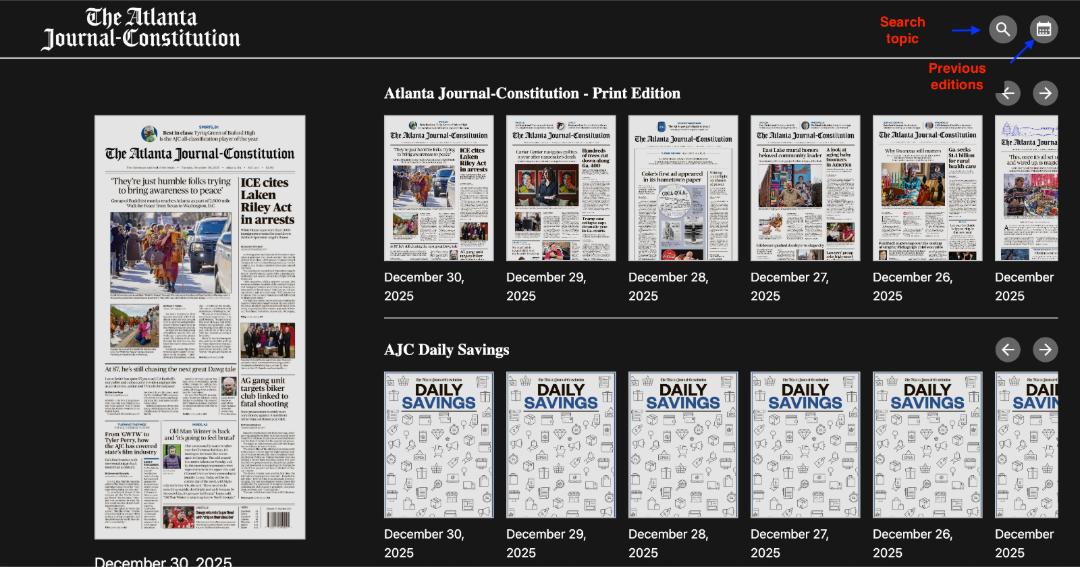
On the ePaper home page you will find the most recent editions on the right, and Today’s edition on the left.
- Search for topics by clicking on the magnifying glass icon. (This feature is currently available in the website only. We are hoping to bring this back to the app in the near future)
- Search for previous editions by clicking on the calendar icon.
News App – Mobile or Tablet
Once you have downloaded the AJC News App on your mobile device, and signed in, click on the menu at the bottom.
You will find today’s edition at the top and previous editions at the bottom.
You can download today and previous editions for offline reading. Then find them in "My Content". This feature is only available on the AJC News App.
Navigating the Daily Edition: Main Page Menu
Desktop
Note, click on the ‘Archive’ icon to navigate back to the full list of earlier editions.
News App - Mobile or tablet
.
Text Size: Changes the font size of articles only.
Reader Settings:
- Fit to width expands the sides of the ePaper to full width
- Double Page Mode shows 2 main pages on the screen
To navigate through the different sections of the ePaper click on ‘Sections’ at the bottom left on desktop
On APP, click in "Contents" on the top to expand the menu and click on "Pages"
A list of all sections will be displayed, and you can scroll (swipe to left if on app) through them to jump to a section of your choice.
Desktop
When using the web version of the ePaper on a computer or tablet, the single arrows on the left and right of the page can be used to flip through the pages of the ePaper. They are also located at the top of the page surrounding the page numbers. The double arrows on the left can be used to quickly navigate to the first page and the double arrows on the right can be used to quickly navigate to the last page.
News App - Mobile or tablet
When using the AJC News app version of the ePaper, you can move between pages by simply swiping your finger on the screen.
To expand an article click on the article you want to read and you may continue navigating through all articles with the same swiping motion.
Desktop
When using the web version of the ePaper on a computer or tablet, use your mouse to click an article. Once the article has been opened, select the “Tt” icon in the upper right-hand corner. Then the ‘Text Size’ bar will open. Slide the Text Size bar to the right to increase the font size or slide it to the left to decrease the font size.
News App - Mobile or tablet
When using the AJC News App version of the ePaper, select an article. Once the article has been opened, select the three dots in the upper right-hand corner. Click "Settings" > Then the “Text Size” option will appear. Slide the Text Size bar to the right to increase the font size or slide it to the left to decrease the font size.
.
Desktop
Select “Sections” from the bottom left corner of the screen.
Visit the Advice Section to see the Crossword and Sudoku page of the ePaper.
Or to play directly on the page choose the “LA PUZZLES” or “PUZZLES PLUS” tab. Then select the actual puzzles page. The full page will open.
Once you select the puzzle that you want to interactively play on your device, it will open on an individual page, and you can start typing in your answers.
If you wish to Print, click the ‘Print’ icon to the right-hand side of the puzzle.
News App – mobile or tablet
When using the AJC News App version of the ePaper, click on "Contents" on the top left, then swipe left through the sections until you see the Advise section.
Or to play directly on the app “LA PUZZLES” or “PUZZLES PLUS” tab. Then select the actual puzzles page.
Desktop
When using the web version of the ePaper, use your mouse to click an article. Once the article has been opened, select the “Share” icon from the upper right-hand corner of the screen.
The article can be shared through the social media options by selecting one of the available icons. It can also be shared by copying the link and then pasting it into an email.
News App – mobile or tablet
When using the AJC News App version of the ePaper, select an article. Once the article has been opened, select the share button in the upper right-hand corner. The article can be shared through the social media options by selecting one of the available icons. It can also be shared by copying the link and then pasting it into an email or a text.
Desktop
You can print full pages of the ePaper or single articles, by clicking on the Print button on the upper menu.
News App – mobile or tablet
You can print whole pages of the ePaper by going to the Setting button from the main page of the ePaper then click on Print.
.
To Print an article only, from the article click on the upper right 3 dots, then settings, then Print.